Convert Files with AI
Some file jobs are a single conversion. Many are not: turn these photos into one PDF, make it searchable, and keep it small enough for email. Until now that meant picking three tools in the right order. Today we are launching Convert with AI (beta): describe what should happen with your files, and CloudConvert plans the steps, runs them with the same engines as always, and hands you the result.
Just describe the result
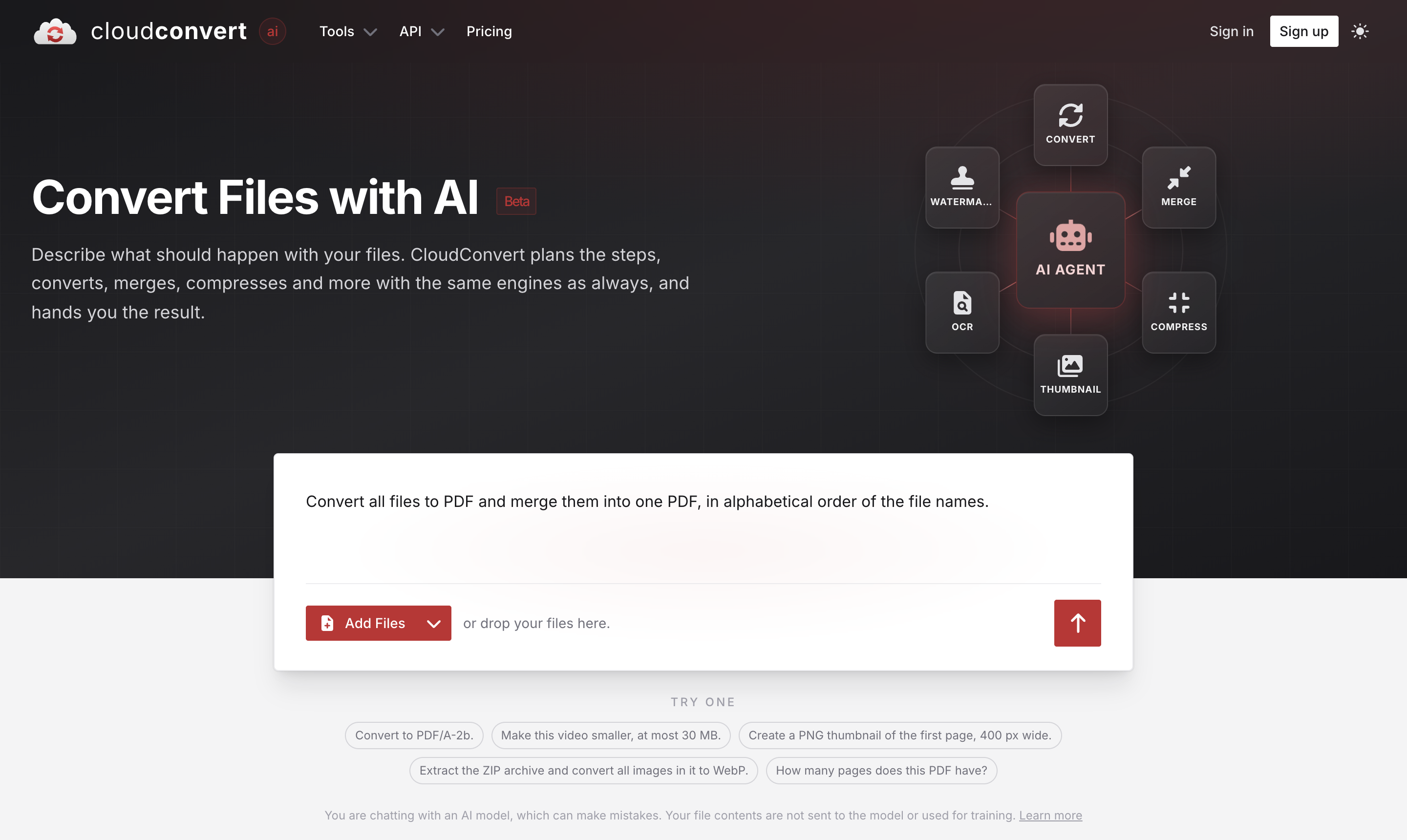
Open cloudconvert.com/ai, add your files and write what you need in plain language. For example:
- Convert to PDF/A-2b.
- Make this video smaller, at most 30 MB.
- Convert all files to PDF and merge them into one PDF, in alphabetical order of the file names.
- Create a PNG thumbnail of the first page, 400 px wide.
- Extract the ZIP archive and convert all images in it to WebP.
- Add the text "Confidential" as watermark to every page.
The AI agent turns your request into regular CloudConvert tasks: convert, merge, compress, OCR, thumbnails, watermarks, archives and more. It can look at the results of a step before it decides on the next one, for example check the page count of a PDF first and convert the first page differently from the rest. Every step shows up in the job card while it runs, and the finished file is ready to download or save to your cloud storage.
A chat, not a form
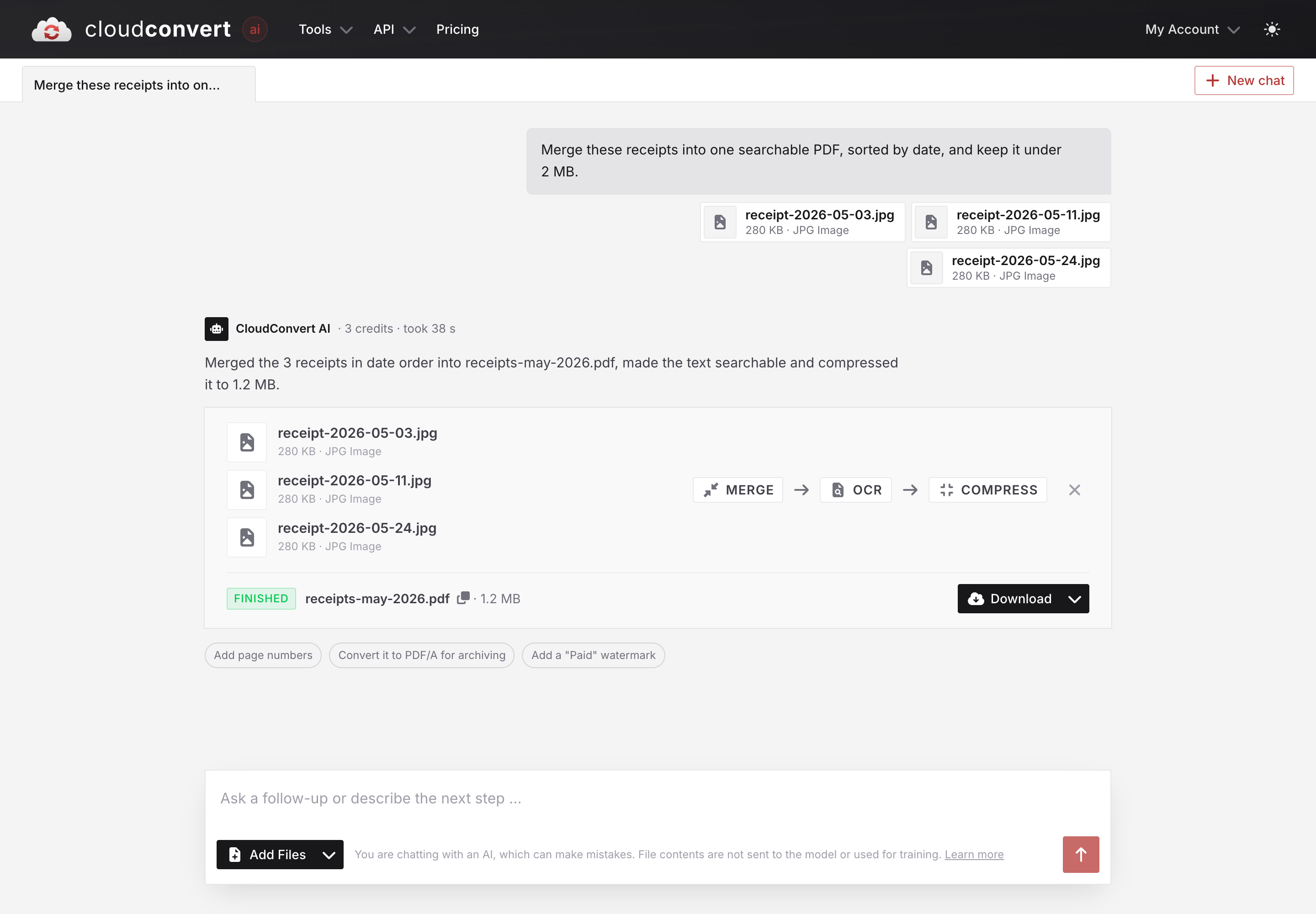
The result is not the end of the conversation. Ask for the next step right in the chat (add page numbers, convert it to PDF/A for archiving) or pick one of the follow-ups the agent suggests. You can also simply ask about your files, such as How many pages does this PDF have? If the agent needs something only you can give, a password for example, it asks instead of guessing.
Right next to the converter
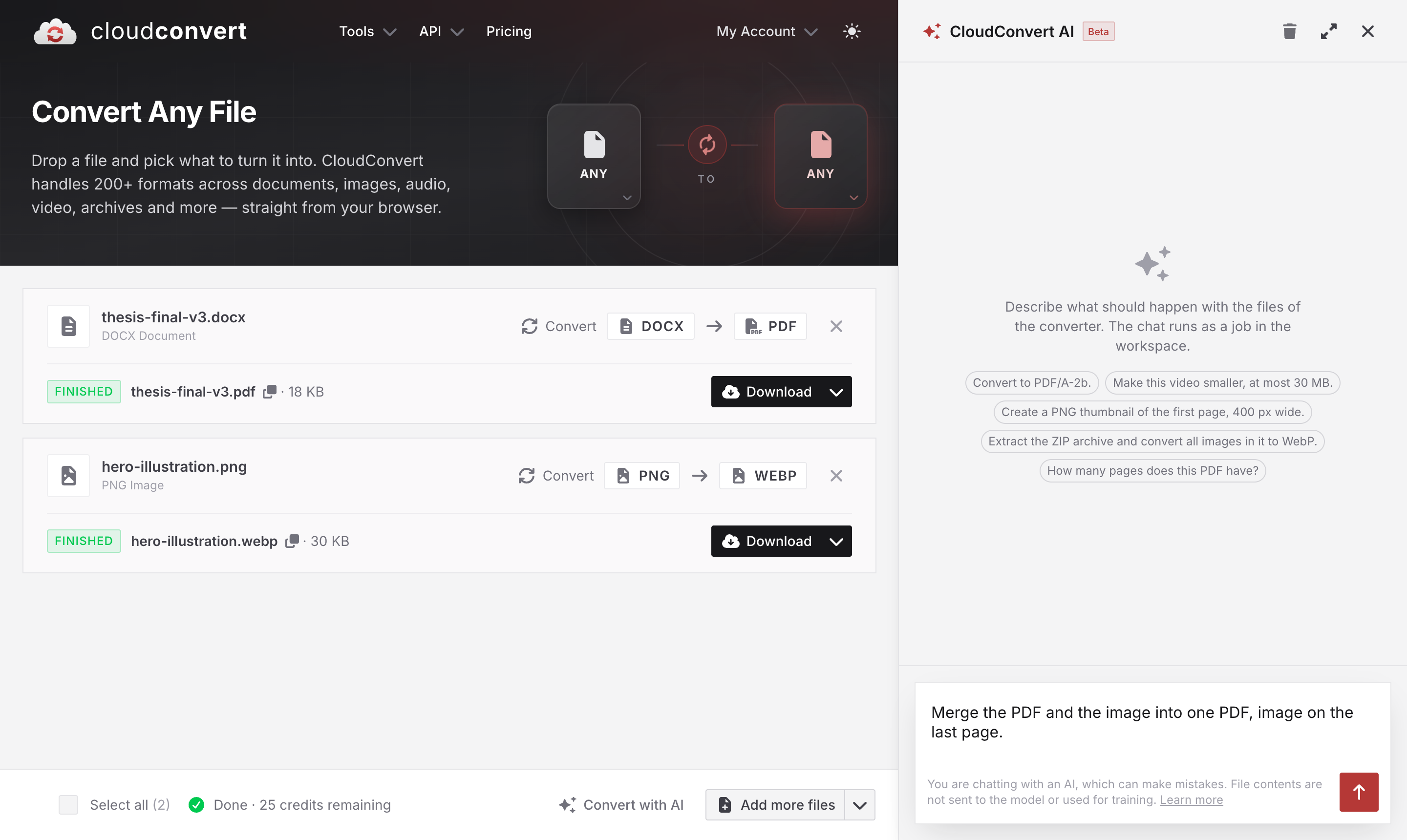
You don't need to leave the converter for it either. Once you have added files, the toolbar has a Convert with AI button that opens the chat beside your workspace. It works with the files you already have there, and its requests run as jobs in the same workspace.
Your files stay with the conversion engines
The AI model never reads your files. It works with your request, the file names and the results of the tasks it has run, such as page counts. The file contents are processed by our conversion engines only, are not used for training, and are removed after processing as always. More details are in our security overview.
If AI is not for you or your team, you can turn it off in the AI settings of your dashboard. The same settings let you turn off the storage of your AI requests for improving our AI features.
Pricing
Asking is free. The tasks the agent creates consume credits like any other conversion, and the jobs show up in your job history as usual.
Also in the API
Convert with AI is built on the new ai/agent task, which you can use in your own jobs: an import task, an ai/agent task with your prompt, and an export task.
{
  "tasks": {
    "import-my-file": {
      "operation": "import/url",
      "url": "https://example.com/report.pdf"
    },
    "agent": {
      "operation": "ai/agent",
      "input": "import-my-file",
      "prompt": "Convert the first page to PNG with a resolution of 2000x2000. If there are more pages, convert the pages after the first one to PNG with a maximum resolution of 1000x1000."
    },
    "export-the-result": {
      "operation": "export/url",
      "input": "agent"
    }
  }
}
The tasks the agent creates are regular tasks of the job, so you get them back with all their results when you show the job. The AI agent documentation has all the details, and the Job Builder lets you try it out.
It's a beta
Convert with AI is in beta, and like any AI it can make mistakes, so have a quick look at the result before you rely on it. We would love to hear what you use it for and where it falls short, so please let us know.