
Blog

Product updates, engineering deep-dives and the occasional behind-the-scenes from the team.

RSS feed

Convert Files with AI

Some file jobs are a single conversion. Many are not: turn these photos into one PDF, make it searchable, and keep it small enough for email. Until now that meant picking three tools in the right order. Today we are launching Convert with AI (beta): describe what should happen with your files, and CloudConvert plans the steps, runs them with the same engines as always, and hands you the result.
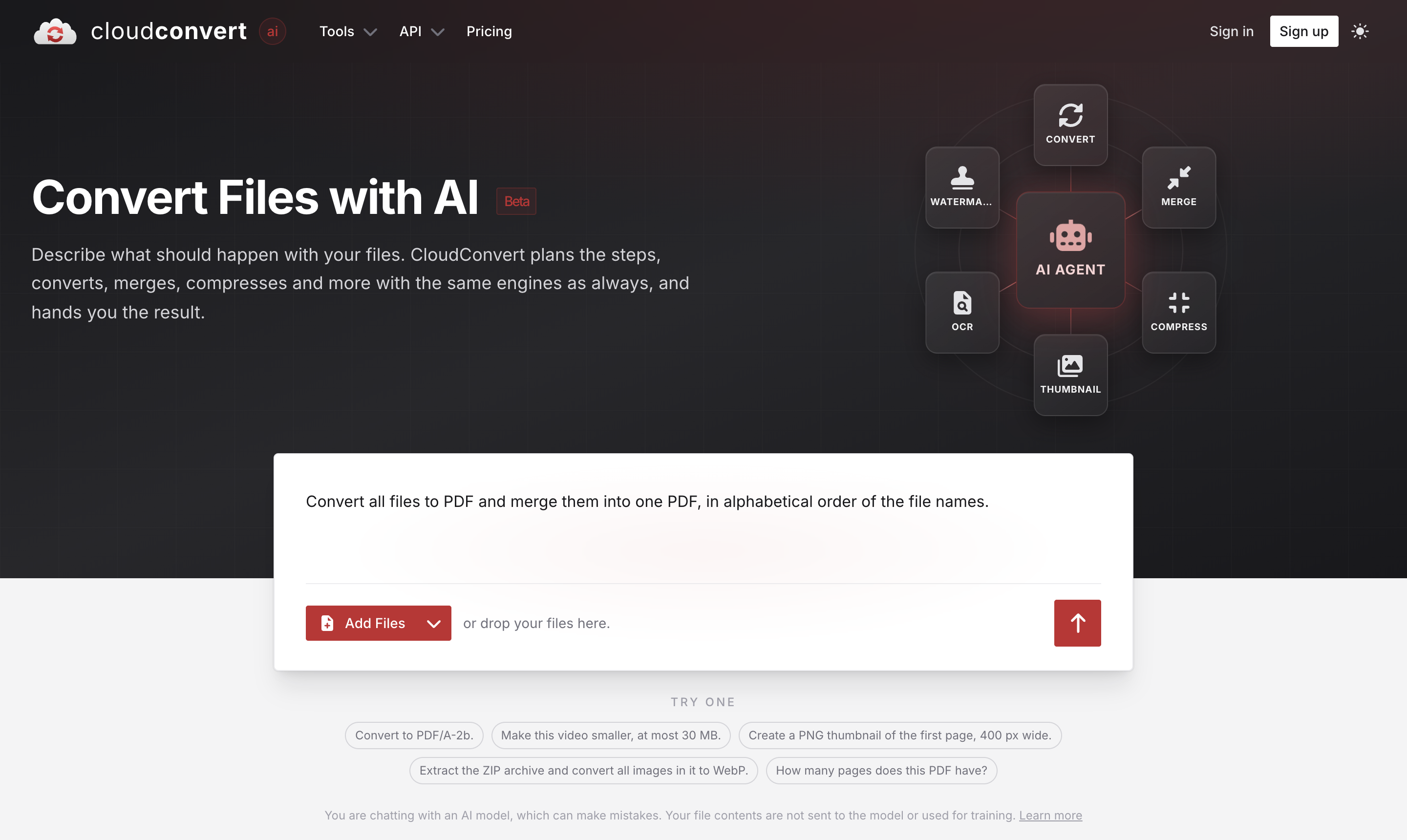
Convert Files with AI: describe what should happen with your files

Just describe the result

Open cloudconvert.com/ai, add your files and write what you need in plain language. For example:

  • Convert to PDF/A-2b.
  • Make this video smaller, at most 30 MB.
  • Convert all files to PDF and merge them into one PDF, in alphabetical order of the file names.
  • Create a PNG thumbnail of the first page, 400 px wide.
  • Extract the ZIP archive and convert all images in it to WebP.
  • Add the text "Confidential" as watermark to every page.

The AI agent turns your request into regular CloudConvert tasks: convert, merge, compress, OCR, thumbnails, watermarks, archives and more. It can look at the results of a step before it decides on the next one, for example check the page count of a PDF first and convert the first page differently from the rest. Every step shows up in the job card while it runs, and the finished file is ready to download or save to your cloud storage.
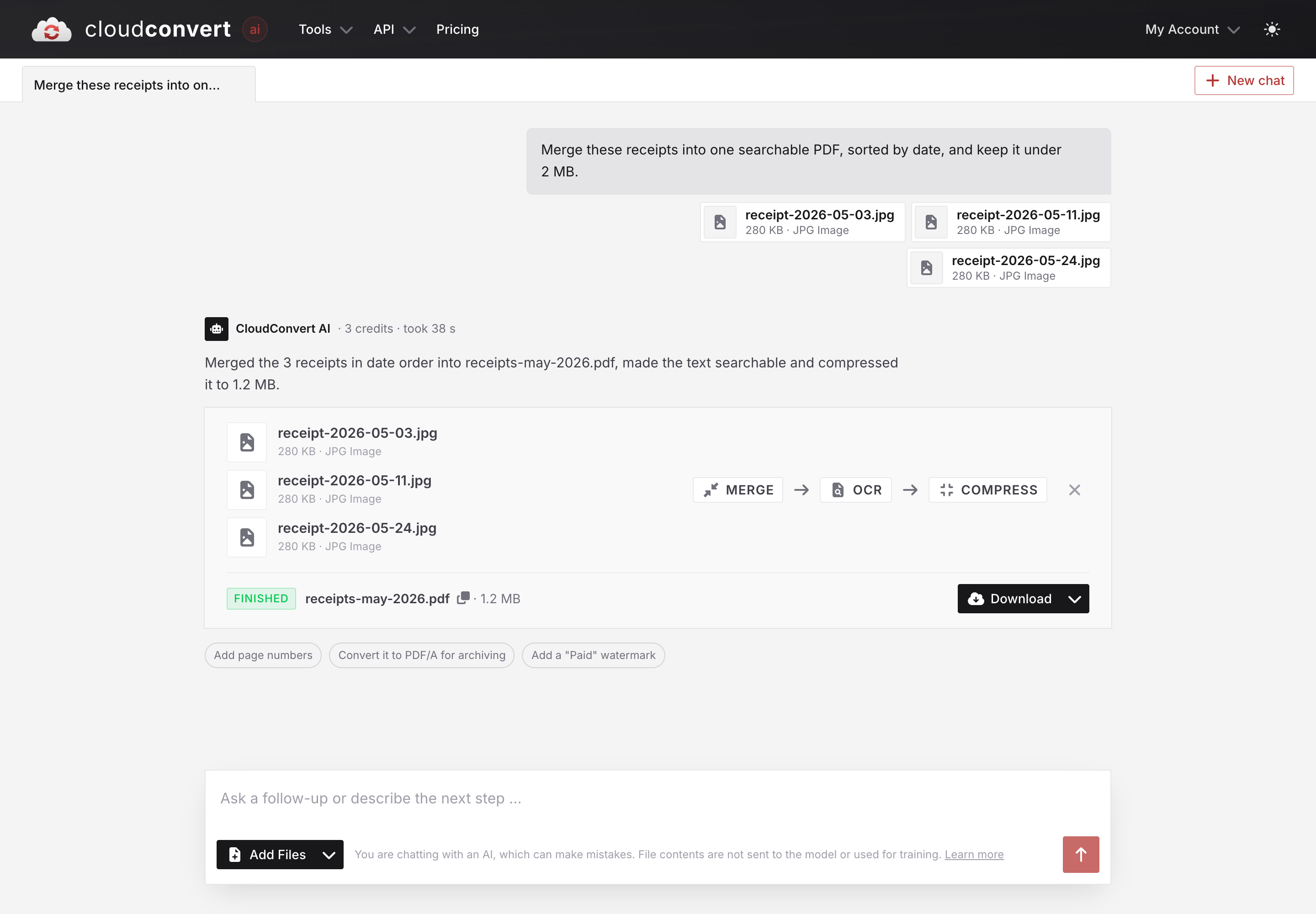
A finished AI chat: three receipts merged, made searchable with OCR and compressed

A chat, not a form

The result is not the end of the conversation. Ask for the next step right in the chat (add page numbers, convert it to PDF/A for archiving) or pick one of the follow-ups the agent suggests. You can also simply ask about your files, such as How many pages does this PDF have? If the agent needs something only you can give, a password for example, it asks instead of guessing.

Right next to the converter

You don't need to leave the converter for it either. Once you have added files, the toolbar has a Convert with AI button that opens the chat beside your workspace. It works with the files you already have there, and its requests run as jobs in the same workspace.
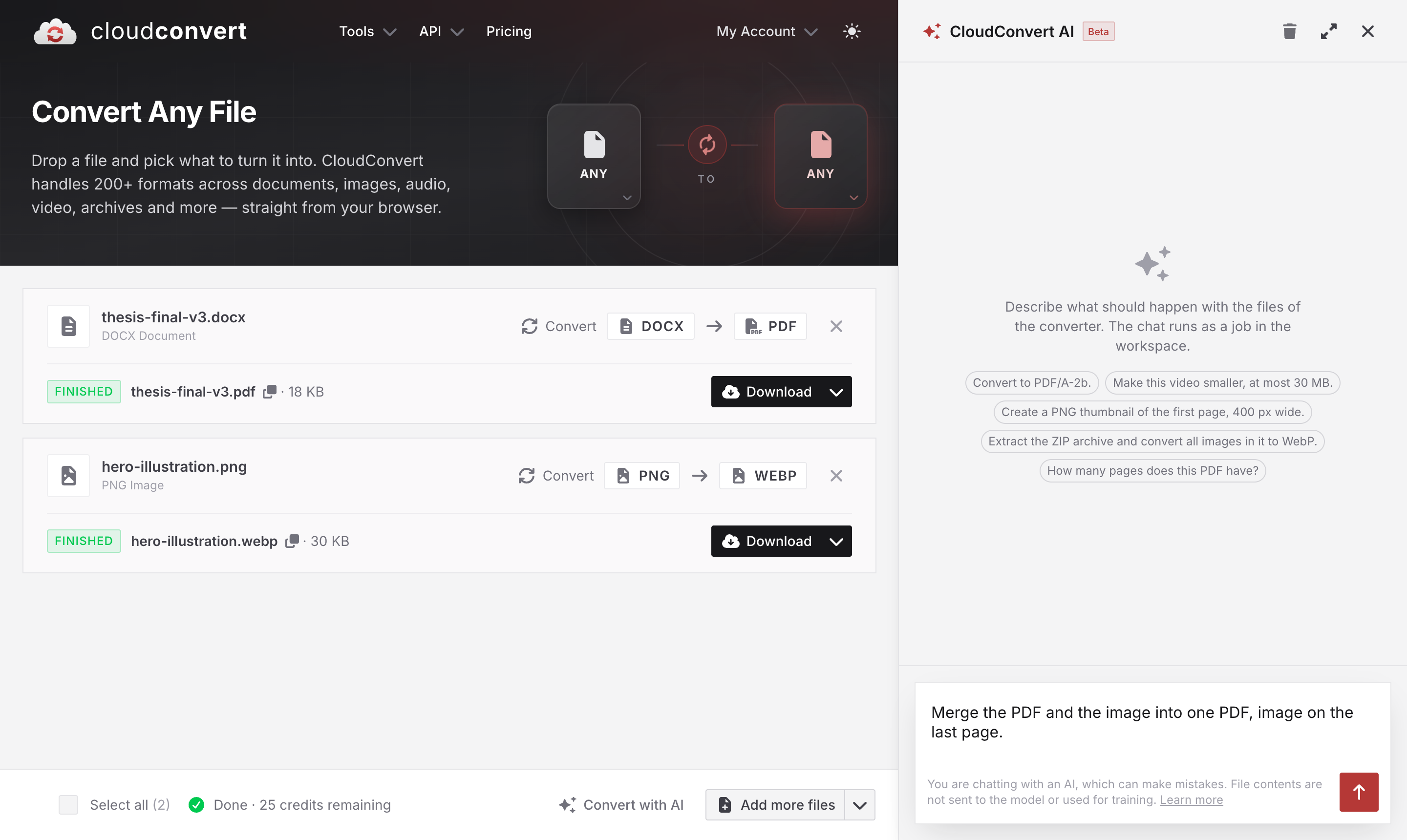
The Convert with AI chat next to the converter workspace

Your files stay with the conversion engines

The AI model never reads your files. It works with your request, the file names and the results of the tasks it has run, such as page counts. The file contents are processed by our conversion engines only, are not used for training, and are removed after processing as always. More details are in our security overview.

If AI is not for you or your team, you can turn it off in the AI settings of your dashboard. The same settings let you turn off the storage of your AI requests for improving our AI features.

Pricing

Asking is free. The tasks the agent creates consume credits like any other conversion, and the jobs show up in your job history as usual.

Also in the API

Convert with AI is built on the new ai/agent task, which you can use in your own jobs: an import task, an ai/agent task with your prompt, and an export task.

{
  "tasks": {
    "import-my-file": {
      "operation": "import/url",
      "url": "https://example.com/report.pdf"
    },
    "agent": {
      "operation": "ai/agent",
      "input": "import-my-file",
      "prompt": "Convert the first page to PNG with a resolution of 2000x2000. If there are more pages, convert the pages after the first one to PNG with a maximum resolution of 1000x1000."
    },
    "export-the-result": {
      "operation": "export/url",
      "input": "agent"
    }
  }
}

The tasks the agent creates are regular tasks of the job, so you get them back with all their results when you show the job. The AI agent documentation has all the details, and the Job Builder lets you try it out.

It's a beta

Convert with AI is in beta, and like any AI it can make mistakes, so have a quick look at the result before you rely on it. We would love to hear what you use it for and where it falls short, so please let us know.
CloudConvert MCP Server

We are excited to announce the CloudConvert MCP Server. It connects AI assistants such as ChatGPT and Claude directly to the CloudConvert API, so you can convert, compress, merge, watermark, and OCR files in the middle of a conversation — no API key, no code, and no switching between tools.

The Model Context Protocol (MCP) is an open standard for connecting AI assistants to external tools and data. Our hosted server speaks it out of the box:

https://mcp.cloudconvert.com

There is nothing to install and no local package to run. The server uses the Streamable HTTP transport and authenticates with OAuth 2.0 against your existing CloudConvert account, so you never have to paste an API key into a chat client. You can revoke access at any time from your CloudConvert account.

What your assistant can do

Once connected, the assistant sees the CloudConvert toolbox and picks the right tool for whatever you ask:

  • Convert between hundreds of document, image, audio, video, ebook, and archive formats
  • Compress and optimize PDF, PNG, and JPG files
  • Merge files into a single PDF, or split and extract pages from an existing one
  • OCR scanned PDFs into searchable, copyable documents
  • Watermark PDFs, images, and videos with text or an image
  • Encrypt and decrypt PDFs, and convert them to the PDF/A and PDF/X standards
  • Capture websites as PDF, PNG, or JPG
  • Read and write metadata, create thumbnails, and build ZIP, RAR, 7Z, or TAR archives
  • Run custom FFmpeg, ImageMagick, and GraphicsMagick commands for anything else

For more advanced requests, the assistant can first discover the supported operations, formats, engines, and options, and then compose a custom multi-step job — the same job graph you would build against our API. It can also check job status, fetch results, and tell you how many credits you have left.

In practice

Attach a file and describe the result you want:

  • “Convert this DOCX to PDF.”
  • “Compress this PDF, but keep it good enough for printing.”
  • “Merge these files in the order I attached them and give me one PDF.”
  • “Make this scanned German PDF searchable with OCR.”
  • “Add a semi-transparent ‘Draft’ watermark to every page.”
  • “Capture this webpage as an A4 PDF.”

You get back secure HTTPS download links, valid for 24 hours. Processed files are deleted automatically according to our file retention policy, and everything runs on our ISO 27001 certified infrastructure.

Getting connected

In ChatGPT, the quickest route is our official app in the plugin directory, which installs the server for you. You can also add https://mcp.cloudconvert.com manually as a developer-mode app under Settings → Apps.

In Claude, add it under Customize → Connectors → Add custom connector using the same URL, and leave the optional OAuth client fields empty. For Team and Enterprise workspaces, an owner adds the connector once in the organization settings, and members then authorize their own CloudConvert accounts.

Any other MCP-compatible client works the same way — point it at the URL and sign in. Step-by-step instructions for each client are in the MCP Server documentation.

One current limitation

Tools that take an input file need that file to be reachable through an HTTP or HTTPS URL. ChatGPT turns your uploads into temporary download URLs automatically, so attachments just work there. Other clients may not, and local file attachments may therefore not be usable yet.

This is a limitation of MCP itself, which does not yet define an interoperable way to move files between clients and servers. A proposal for first-class file objects and transfer negotiation (SEP-2631) is in draft. We will adopt it as soon as it lands.

Try it and tell us what you think

Head over to the MCP Server page to connect in a couple of clicks, or read the documentation for the full tool reference. Processing files through the MCP Server uses the same conversion credits as the rest of CloudConvert.

We would love to hear which workflows you build with it — and which tools you are still missing. Let us know at support@cloudconvert.com.

Announcing GPU Video Encoding for H264, HEVC, and AV1 on CloudConvert

We are excited to announce that CloudConvert now offers GPU-based video encoding for H264, HEVC, and AV1 formats. This new feature brings a significant performance boost, especially for HEVC and AV1 encoding.

What is GPU Video Encoding?

GPU video encoding uses the power of a graphics processing unit (GPU) instead of a central processing unit (CPU) to handle the task of video compression. The main advantage of GPU encoding is speed. Since GPUs are highly parallel processors, they can handle many operations simultaneously, leading to faster encoding times compared to CPUs.

However, GPU encoding has a few trade-offs. While it's faster, it can sometimes result in slightly lower quality at the same file size when compared to CPU encoding. Depending on the use-case, though, the speed advantage may outweigh any minor quality differences, especially for larger files or longer videos.

Why GPU Encoding is Especially Useful for HEVC and AV1

Our internal tests showed significant improvements when using GPU encoding over CPU encoding:

  • H264 encoding: 2x to 4x faster on GPU
  • HEVC encoding: 10x faster on GPU
  • AV1 encoding: 100x to 200x faster on GPU

These performance boosts are particularly important for HEVC and AV1, which are newer, more efficient formats but are typically slow to encode on a CPU. With GPU encoding, you can convert these formats at a fraction of the time it usually takes.

Now Available on the Latest NVIDIA Ada Lovelace GPUs

The new GPU encoding feature on CloudConvert uses the latest generation NVIDIA Ada Lovelace GPUs, ensuring the best performance and efficiency for your video conversions.

How to Use GPU Encoding on CloudConvert

GPU video encoding is an opt-in feature. If you're using our web interface, you can now switch between CPU and GPU encoding in the advanced options section.

For API users, you can enable GPU encoding by setting the engine parameter to ffmpeg_nvidia. Also, the available parameters for codec, target quality and presets do slightly differ from the ones for CPU encoding. You can show the available options by opening the Job Builder and setting the engine to ffmpeg_nvidia.

Pricing

Given the power and speed of GPUs, they are expensive and sometimes difficult to source. As a result, GPU encoding on CloudConvert comes at a slightly higher base cost. The pricing for GPU encoding is 5 base credits + 1 credit per minute per conversion. In contrast, CPU encoding remains priced at 1 base credit + 1 credit per minute.

That said, GPU encoding is significantly faster, meaning you'll use fewer credits overall due to the shorter conversion times.

We Want Your Feedback!

We're looking forward to hearing from our customers about this new feature. Try it out and let us know how it’s working for you. Your feedback will help us continue to improve and refine CloudConvert.

ISO 27001 Certification

We are excited to share that the ISMS of Lunaweb GmbH, the company behind CloudConvert, achieved ISO 27001 certification from TÜV Süd, highlighting our strong commitment to data security and secure management principles. This certification validate we follow top-notch international standards for keeping your data safe and secure. When you use CloudConvert, you can be confident that your data is handled responsibly and with the highest level of security.

Check out the certificate and read more on our Security Overview page.

Improved Team Management

We have released a significant update for CloudConvert for Teams, introducing enhanced team management capabilities through fine-granular roles:

The new Member role allows teams to collaborate when building and managing CloudConvert API integrations. Team members can use shared Jobs, Tasks, API keys, webhooks, signed URLs and generally the complete CloudConvert functionality.

The Consumer role is the old basic role for all team members. The role allows users to utilize shared team billing credits. However, all of their Jobs, Tasks, API keys, and other data remain private and isolated from the rest of the team.

The Billing role allows management of the plan, billing contact, payment method and invoices.

The Admin role allows full access and team management, such as adding and removing team members. Unlike before, where the role of "Owner" was singular, teams can now have multiple admins with equal rights.

CloudConvert + Microsoft Power Automate

We are happy to announce that CloudConvert is now integrated with the Microsoft Power Automate platform.

Microsoft Power Automate allows it to build cloud-based workflows without writing any code by using thousands of connectors.

For example, you can connect CloudConvert with SharePoint or OneDrive to automate even complex tasks.

Currently, the following actions are available on the Power Automate Platform:

  • Convert File
  • Compress File
  • Capture Website Screenshot

Depending on your feedback further actions from the CloudConvert API will follow. You can find the documentation of the connector here.